You should have plenty of professional looking images displayed on your Petworks listing page. Great looking images will help you stand out, and you’ll attract more pet parents to your pet care services business. One image will be your thumbnail. And all the rest will be carousel images. This tutorial below will walk you through how to add your thumbnail image:
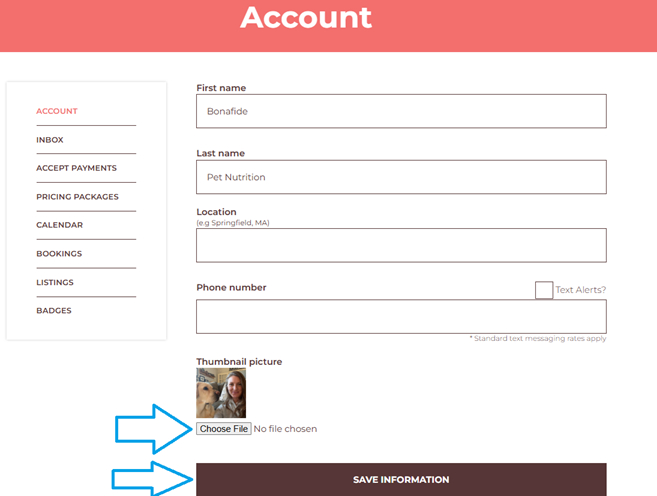
 Step 1: Go to your Account Page.
Step 2: Click “Choose File”. Then select an image from your laptop or smart phone. The ideal image size should be any size smaller than 400 pixels wide X 400 pixels high.
Step 3: Be sure to click on the ‘Save Information’ bar:
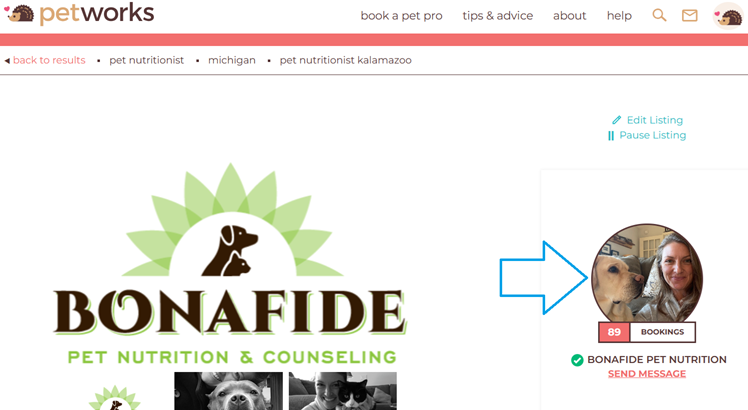
Once you’ve added your thumbnail image, you’ll see it appear in circular shape along the right hand side of your listing page:
More About Petworks

Petworks Co-Founder Kevin Kinyon is a life-long animal lover who works tirelessly to improve the lives of pets and their parents. Human and animal qualities he values most are integrity, humor, and empathy.

 petworks tm